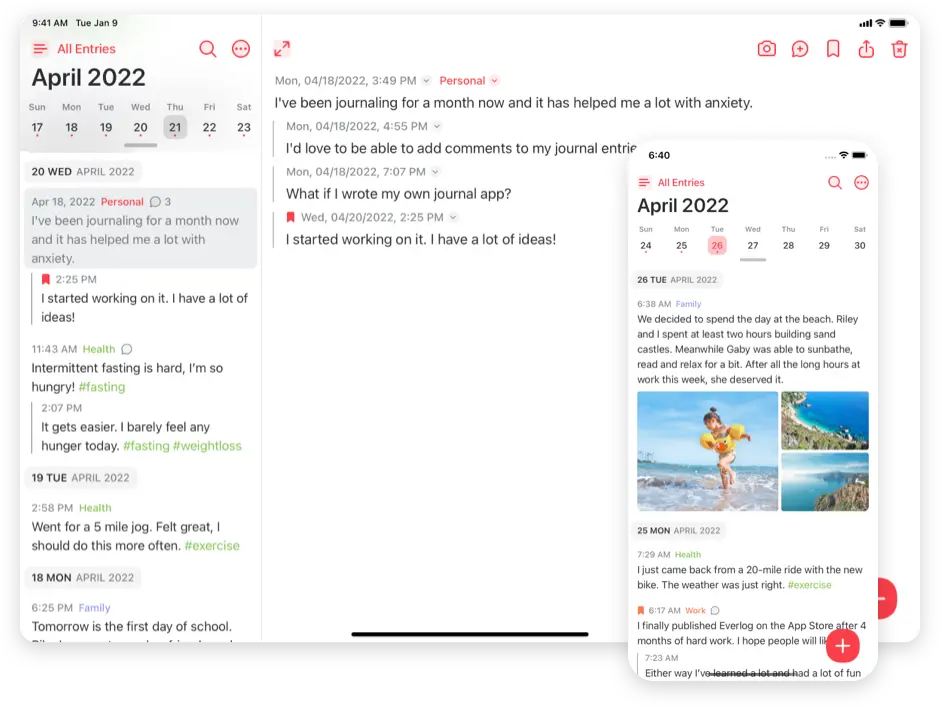
How I Use Everlog
I’ve journaled somewhat regularly for decades and daily since 2020. Paper journals, Moleskines (my favorite notebooks), plain text files, and Day One (since 2011). Recently, Day One made changes that spooked me enough to find an alternative—Everlog.
Day One continues to raise prices. Their silver plan is now $50 per year and it’s $75 per year for their gold plan. They push that gold plan every chance they get. They are also integrating A.I. across the application and you cannot disable the various buttons that trigger A.I. plus a pitch to upgrade to gold. There’s a bad smell in all of this.
Everlog is a journal application for Mac, iPad and iPhone. Solo developer, Wessley Roche, wrote a simple application that leverages iCloud for synchronization and privacy. It’s not as polished as Day One. There are little bugs and quirks. But what it lacks in detail it makes up for in price and simplicity.
Everlog stores all data on your iCloud account, not on a separate service owned by Everlog. With Advanced Data Protection turned on, your data is encrypted end-to-end and safe. Roche never sees a single letter of your writing. How you use the app is completely up to you. And it’s cheap. Only $50 for the lifetime license.
Features
Everlog premium supports family sharing—one purchase for six users.
Everlog supports writing in Markdown which is becoming the defacto standard for writing on the Internet. I love it. It’s easy and worth learning.
Entries can contain photographs, PDFS, audio files and more.
Easy tagging. Type a hashtag (#) followed by your tagname (#journaling) and it will show up on the left sidebar. I find myself tagging my journal entries more.
Your location and weather are added automatically to every entry. Everlog lacks a map view, but it has a simple navigation “tree” for all locations. It’s a good compromise.
Geolocation and weather from imported photographs.
Fast. It’s blinding fast.
No ads or upsells. Cannot stress this enough.
No A.I.
Installation
Install Everlog from the App Store. Skip the yearly subscription and go straight for the $50 lifetime license. It’s a bargain in today’s “subscription-for-everything” world.
There is another price to pay, iCloud. Everlog stores written content and attachments on iCloud. iCloud handles synchronizing entries between devices. It’s fast and reliable. I have over 4500 entries, 1.2 million words, and over 20GB of images, documents, and little movies stored in my journal. I have to pay Apple for enough space to store it.
Unlike Day One which only provides storage for the journals, iCloud shares storage across all devices for files, photos, and backups. It’s a great value for dollar and there are a range of plans for different needs. It’s worth the money.
SETTINGS (⌘,)
Use the Everlog Premium pane to restore paid access if necessary.
Mess around with Daily Goal, Templates, Notifications, and On This Day panes to suit your needs.
General Settings
Timeline. I like Display Word Count in Headers. Set Entry Preview to 4 lines. Turn on Metadata for Attachments, Comments, Times, Locations, Weather, Separators. Leave off Prompts and Relative Dates. I prefer Click to… Open Entry for Attachment behavior.
Editor. Turn on Word Count, turn off Show Attachments in Grid, default thumbnail size of 145 pt is fine. For Markdown syntax I Always Show syntax where most people would want During Editing. Start New Entries With should be Title. Everlog Markdown flavor is fine.
Attachments. Automatic image placement. I prefer Image Quality as Original. Turn all the GIFs options if you want. I never auto-set the Attachment’s Date but I always turn on Use Attachment Location. You can always open an image and tell it to use the date or location, later.
Location & Weather. Turn both on.
Turn off Use Calendar Date because we want time stamped entries throughout the day.
Other Settings
Appearance defaults are good. Tweak them for different colors, fonts, sizes. Personally, I prefer 16 pt font size for the Editor.
Turn on iCloud Sync. I turn off Optimize Device Storage on my Mac because I prefer having all attachments stored locally, but I turn it on for my iPad and iPhone.
Adjust the Privacy settings to suit. Ensure Cloud Encryption Supported is green. If not, turn on Advanced Data Protection on iCloud. ADP protects more than Everlog entries, it protects virtually all iCloud files.
Finally, iCloud is not “backup.” It’s a synchronization mechanism. Setting Backups to store a full copy once in a while to an iCloud folder is an extra level of protection.
Importing from Day One
It’s easy to transfer Day One journals into Everlog, but first, archive the data.
- Export a PDF (File > Export > PDF). If it asks to download media, press Download now. The default export is fine, but it’s fun to tweak options like adding maps, etc.
- Export a plain text archive (File > Export > Plain Text / Markdown). A zip file is created containing all journal entries as plain text files plus a folder containing all original media (without compression like the PDF does).
- Export a JSON archive (File > Export > JSON). A zip file is created containing all journal entries and original media in a machine readable format. This is the file you import into Everlog.
Store these three archives someplace permanent.
To import into Everlog, open the app and select Import (File > Import > Day One). Select the JSON zip archive.
Everlog successfully imported my 4500+ entries, but not perfectly. Like any process like this, there are occasional errors. For me, it was almost entirely formatting issues with older entries. Nothing major. Each day I review On This Day and fix the entries. However, there were a few esoteric files dropped. You can tell because the journal entry will say “[attachment](ID_STRING)”. It wasn’t many. Just a handful. Mostly imported PDFs. I was able to use my archives to restore the attachments.
Tips
Tag your entries with what they are about. A #child, #pet, #work, #vacation. Use the On This Day list for a trip down memory lane.
Don’t over think it.
Set this up and use it. Everlog is fast. Open the app, hit New Entry (⌘N) and start writing. A few words, sentences, paragraphs, epistles. Write what’s bothering you. Write what you love/hate. Write about your day. Write about someone who is driving you crazy—a crush, enemy, frenemy(?).
Write for an audience of one. You.